---
title: "Azure CI/CD iOS Integration"
description: "Learn how to integrate DoveRunner Mobile App Security SDK with Azure DevOps Pipelines for automated iOS app protection."
---
> For the complete documentation index, see [llms.txt](/llms.txt).
import { Aside, Steps } from '@astrojs/starlight/components';
This guide explains how to apply DoveRunner Mobile App Security SDK to an iOS project managed by Azure DevOps Pipelines. The following project types are supported:
- Xcode native (Swift / Objective-C)
- Flutter
- Ionic / Cordova
- React Native
The preparation steps are the same for all platforms. The build script differs per platform — use the platform-specific script from `AzureScripts.txt` included in the SDK package.
---
## Step 1 — Prepare Certificate and Profile
Because DoveRunner SDK re-signs the IPA during `generate_hash` execution, you need to include a distribution certificate and provisioning profile in your source repository before setting up the pipeline.
### Export a P12 Certificate from Keychain
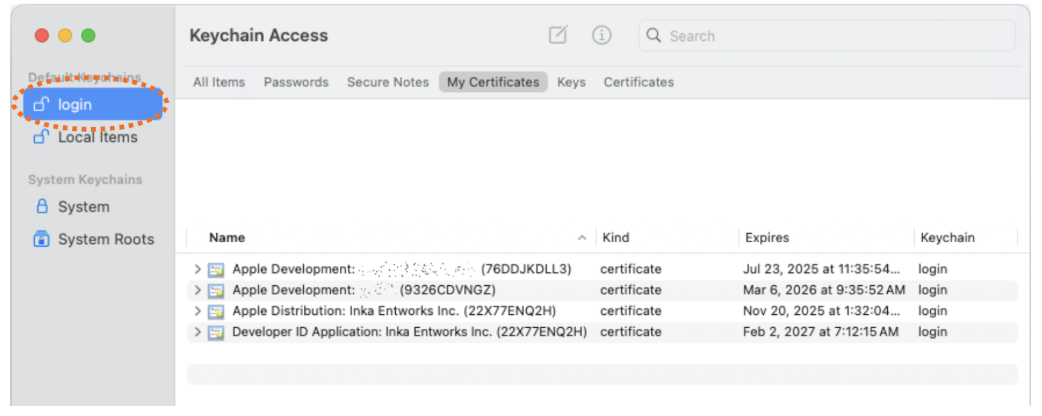
1. Open **Keychain Access** (Launchpad → Other → Keychain Access). Select **login** from the left panel.
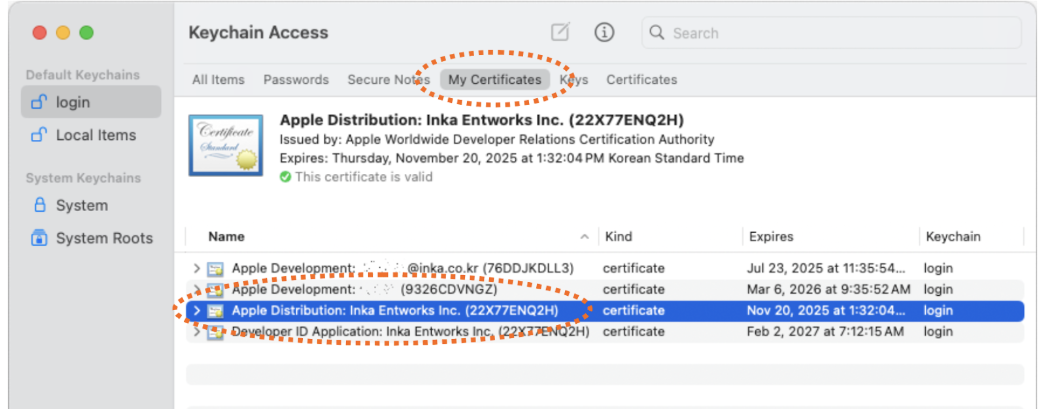
2. Select **My Certificates** from the top tab. Find and select your App Store distribution certificate.
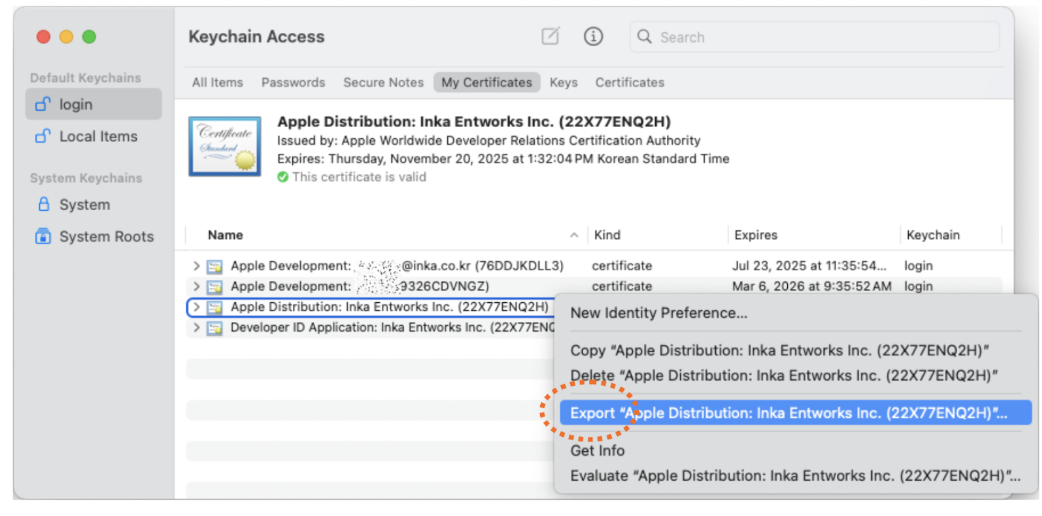
3. Right-click the certificate and select **Export…**
4. Set the save location to your project folder, the filename to `distribution.p12`, and the format to **Personal Information Exchange (.p12)**.
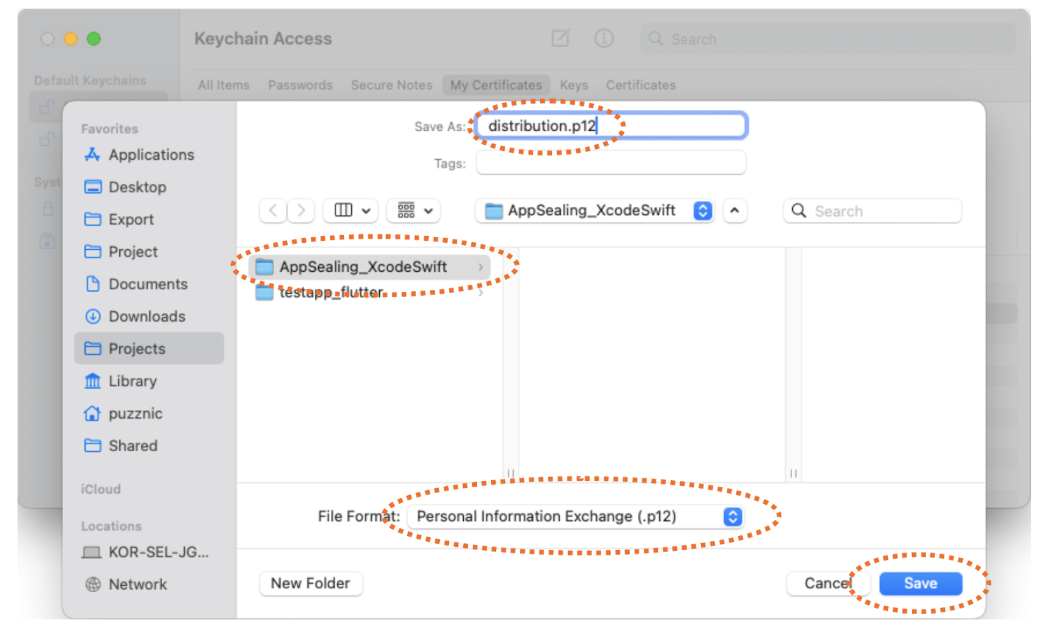
5. Click **Save** and enter a password when prompted. Note this password — you will register it as a pipeline variable in the next step (`CERTIFICATE_PASSWORD`).
### Add the Provisioning Profile
Place the App Store distribution provisioning profile downloaded from the Apple Developer site in your project folder. The file must be named **`profile.mobileprovision`**.
After adding both files, push them to your source repository before proceeding. The Azure pipeline will not build correctly until this is done.
---
## Step 2 — Configure Azure DevOps Variables
1. Open your project in Azure DevOps, navigate to the active Pipeline, and click the **Variables** button in the top-right corner.
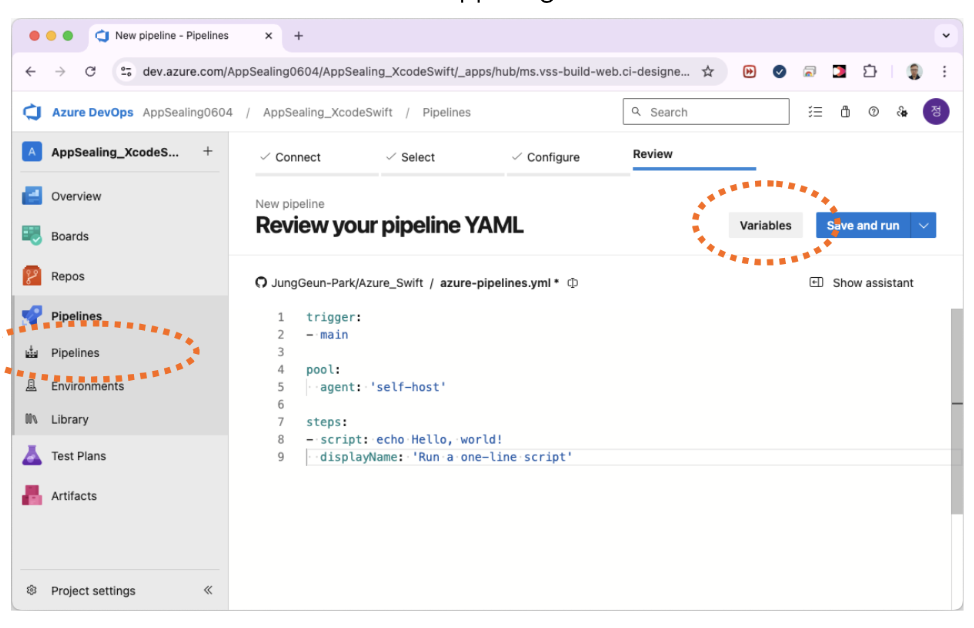
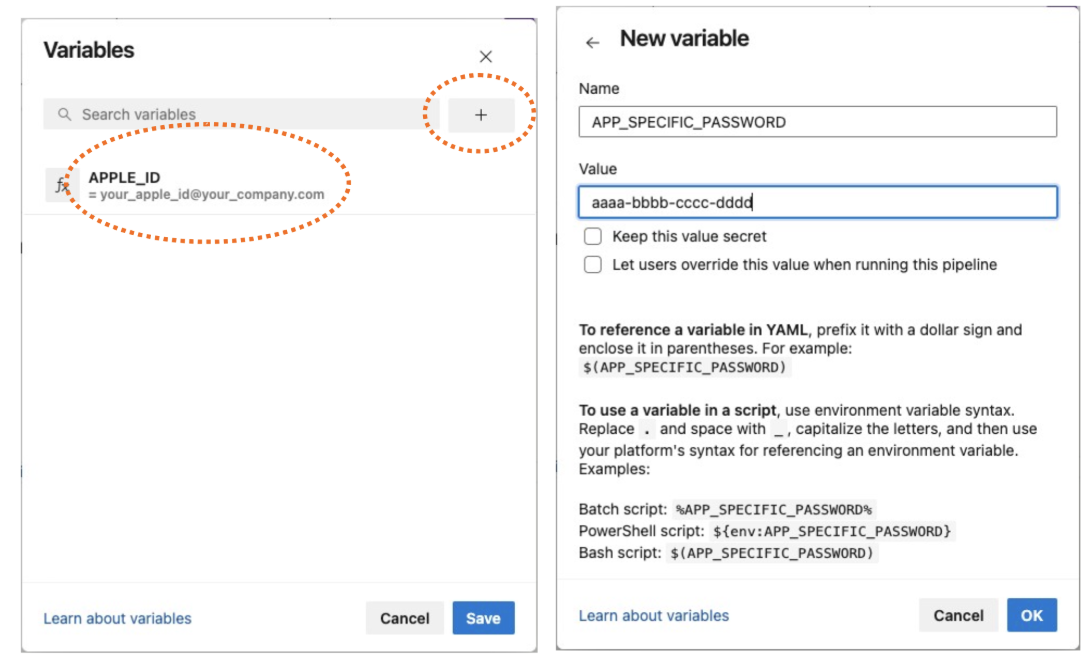
2. Click **New Variable** and add the following variables one by one:
| Variable | Value |
| :------- | :---- |
| `APPLE_ID` | Your Apple account email |
| `APP_SPECIFIC_PASSWORD` | Your app-specific password |
| `CERTIFICATE_PASSWORD` | The password set when exporting the P12 certificate |
| `TEAM_ID` | Your Apple Developer Team ID |
| `PROVISIONING_PROFILE_NAME` | The name of the provisioning profile used to deploy the app |
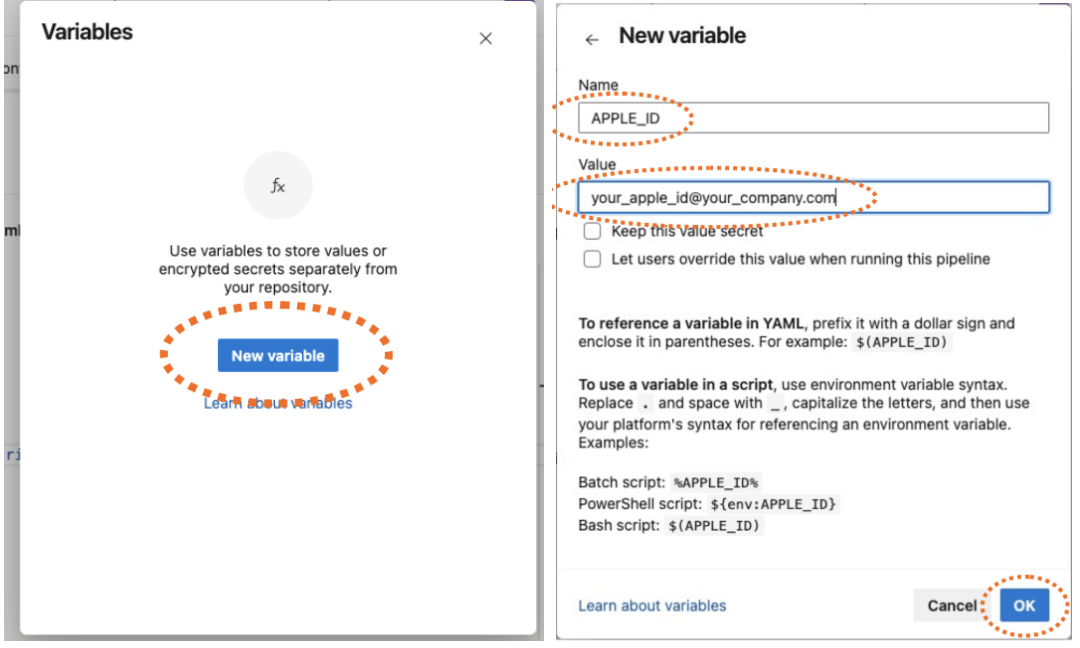
3. For `APP_SPECIFIC_PASSWORD` and `CERTIFICATE_PASSWORD`, enable **Keep this value secret** to hide the values from pipeline logs.
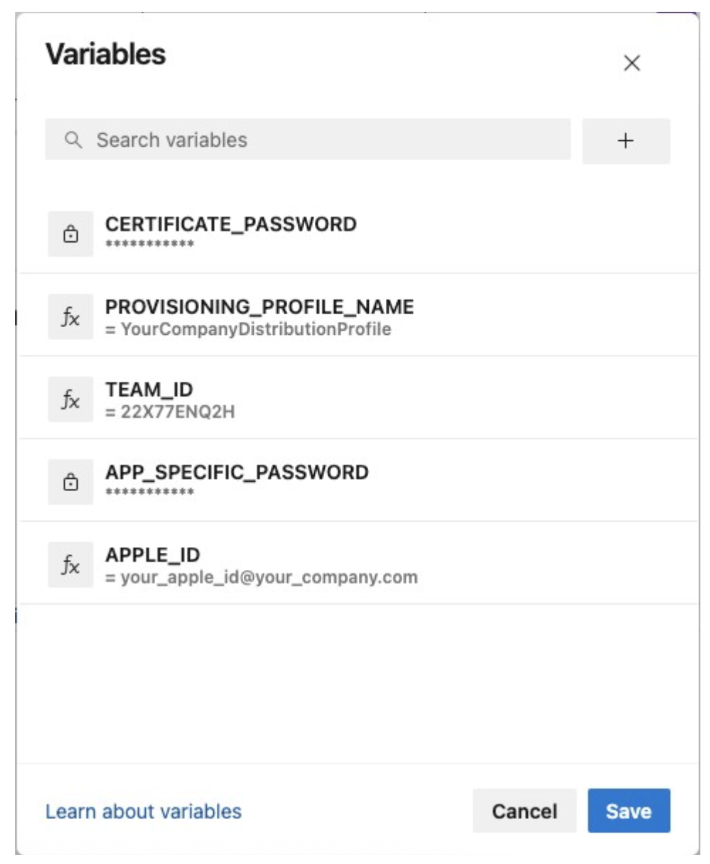
4. Confirm all five variables are registered correctly.
---
## Step 3 — Update the Azure Build Script
Open the pipeline editor in Azure DevOps or edit the YAML file directly in your repository.
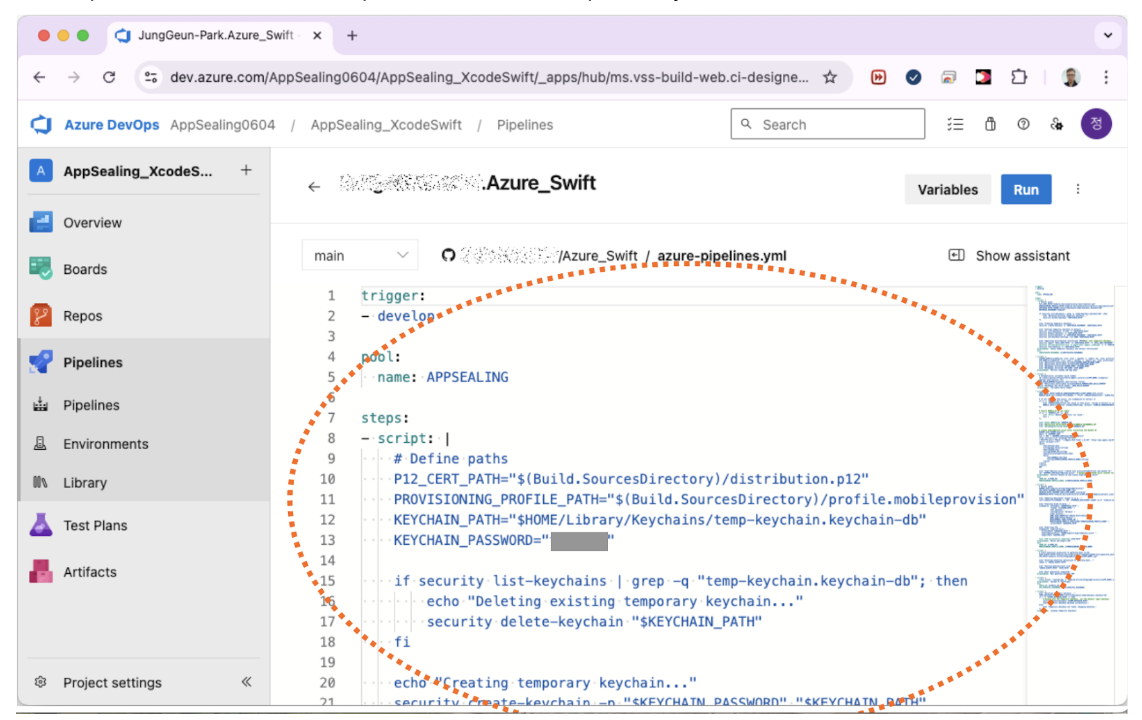
Replace the existing YAML content with the script from the SDK package:
- **Xcode native projects** — use the script in `Fastlane Scripts/azure-pipeline.yml`
- **Flutter / Ionic / Cordova / React Native** — use the platform-specific script from `AzureScripts.txt`
In the script, update the following values to match your project:
| Field | Description |
| :---- | :---------- |
| `trigger` → `branches` | The branch name that triggers the pipeline build |
| Agent pool name | The name of your Azure pipeline agent pool |
Push the updated YAML to your repository. The pipeline will run with DoveRunner Mobile App Security SDK applied.
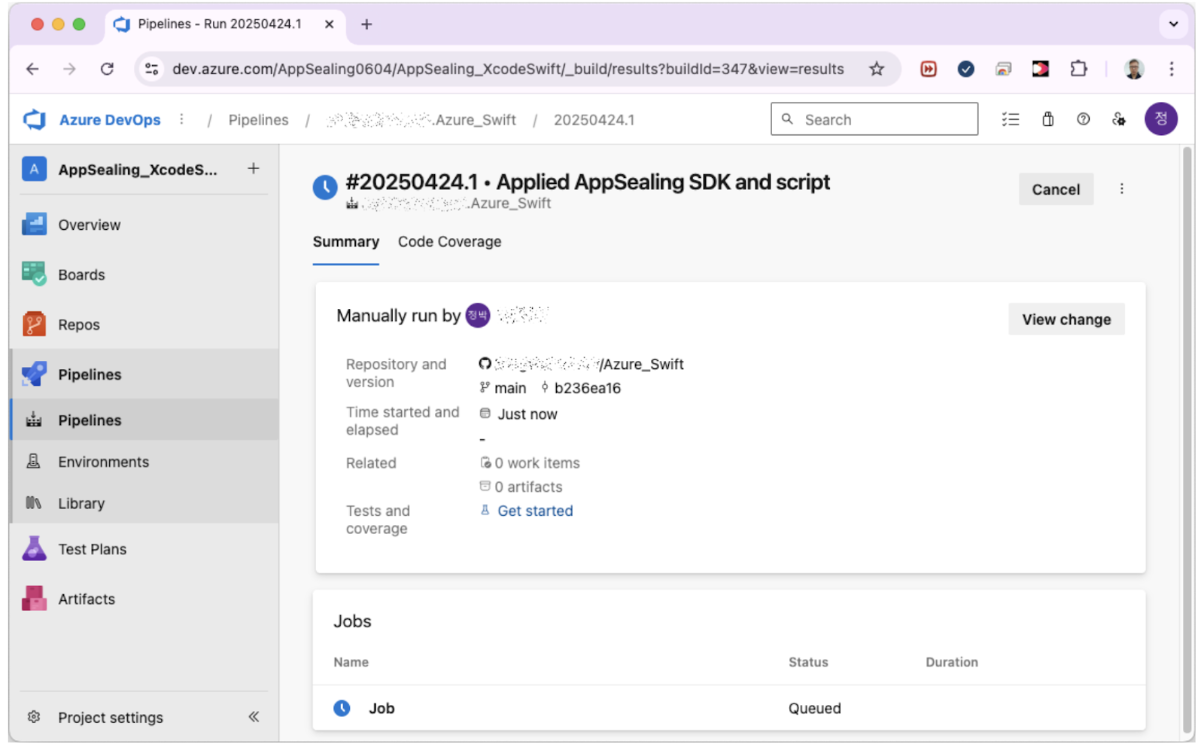
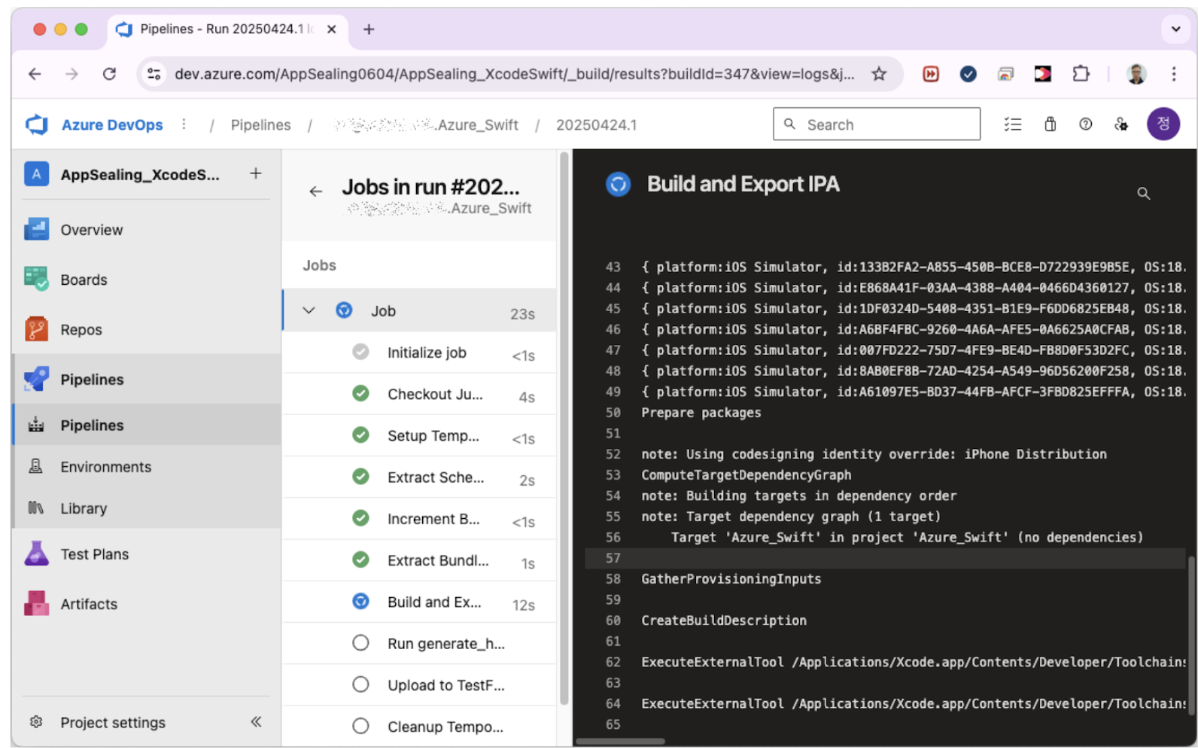
When the pipeline completes successfully, the IPA has been sealed with DoveRunner Mobile App Security and uploaded to App Store Connect. The app is ready for TestFlight testing or App Store submission.